
Documentation
Everything you need to get started with TestPlan.
Quick Start
Get up and running with TestPlan in under 5 minutes.
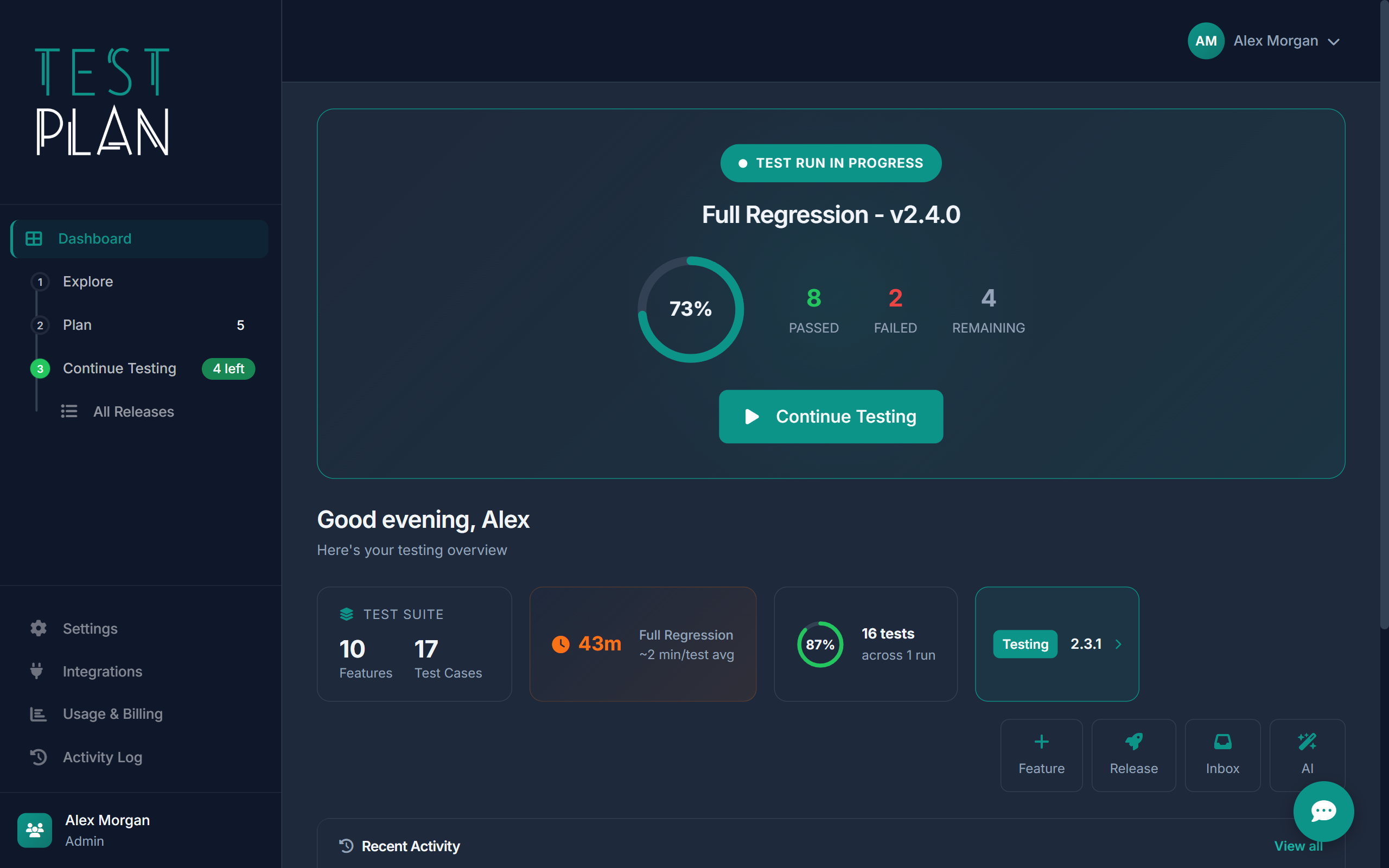
Create your first feature
Features represent the areas of your product you want to test. Go to Plan and click + Add Feature. Give it a name like "User Authentication" and a brief description.
Add test cases
Click into your feature and add test cases. Each test case has a title, priority, steps, and expected results. Be specific - another tester should be able to run this without asking questions.
Create a release
When you're ready to test a version, create a release from All Releases. Give it a version number and optionally link to your changelog or release notes.
Start a test run
From the release page, start a test run. Select which features to test, assign it to yourself or a team member, and begin executing tests one by one.
Core Concepts
Features
Features are the building blocks of your test suite. They represent product functionality - things like "Login", "Checkout", or "Search". Organize your test cases under features to track coverage.
Test Cases
A test case is a set of steps to verify something works. Each case belongs to a feature and has a priority (Critical, High, Medium, Low) and estimated time.
Test Runs
A test run is an execution session where you go through test cases and record results (Pass, Fail, Blocked, Skipped). Runs are tied to releases for traceability.
Releases
Releases track versions of your software through a workflow: Draft → Testing → Released. Each release can have multiple test runs and tracks pre/post-release issues.
Managing Features
Features help you organize test cases by product area. Each feature tracks its own coverage metrics.

Creating a Feature
- Navigate to Plan in the sidebar
- Click + Add Feature
- Enter a name (e.g., "User Authentication")
- Add a description explaining what this feature covers
- Select a category to group related features
- Click Save
Categories
Use categories to group features by area: Core, Payments, Admin, Integrations, etc. You can filter the feature list by category.
Feature Status
- Active - Currently in use and being tested
- Draft - Work in progress, not ready for testing
- Deprecated - No longer relevant, hidden from test runs
Writing Test Cases
Good test cases are clear, repeatable, and unambiguous. Anyone should be able to execute them.
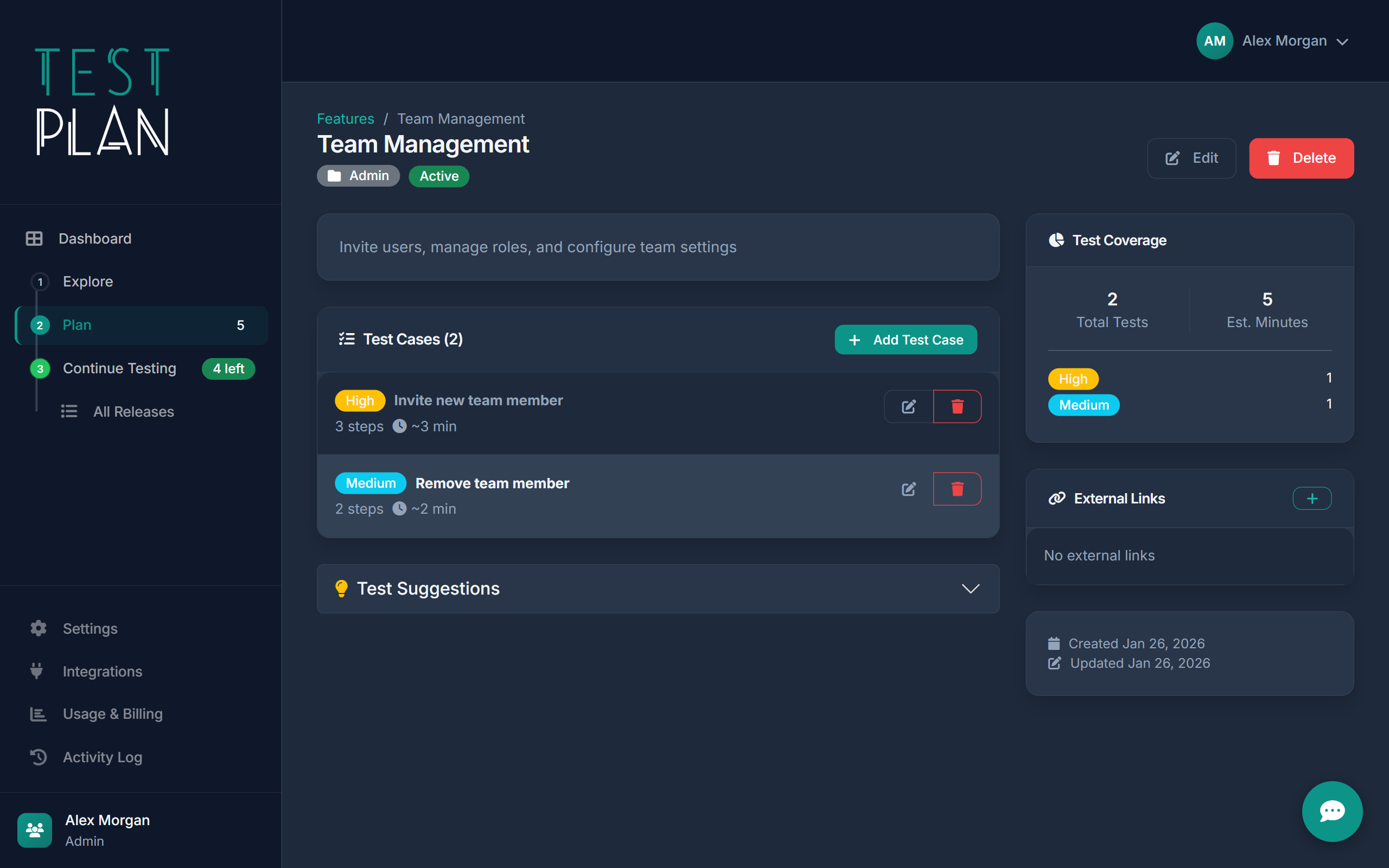
Test Case Structure
- Title - What you're testing (e.g., "User can log in with valid credentials")
- Priority - Critical, High, Medium, or Low
- Preconditions - What needs to be set up before testing
- Steps - Numbered actions to perform
- Expected Result - What should happen if the test passes
- Estimated Time - How long this test typically takes
Writing Good Steps
Each step should be a single action. Be specific about what to click, enter, or verify.
Bad: "Submit the form"
Attachments
You can attach screenshots or files to test cases. Paste images directly (Ctrl+V) or drag and drop files.
Running Tests
Test runs are where the actual testing happens. Execute tests, record results, and track progress.
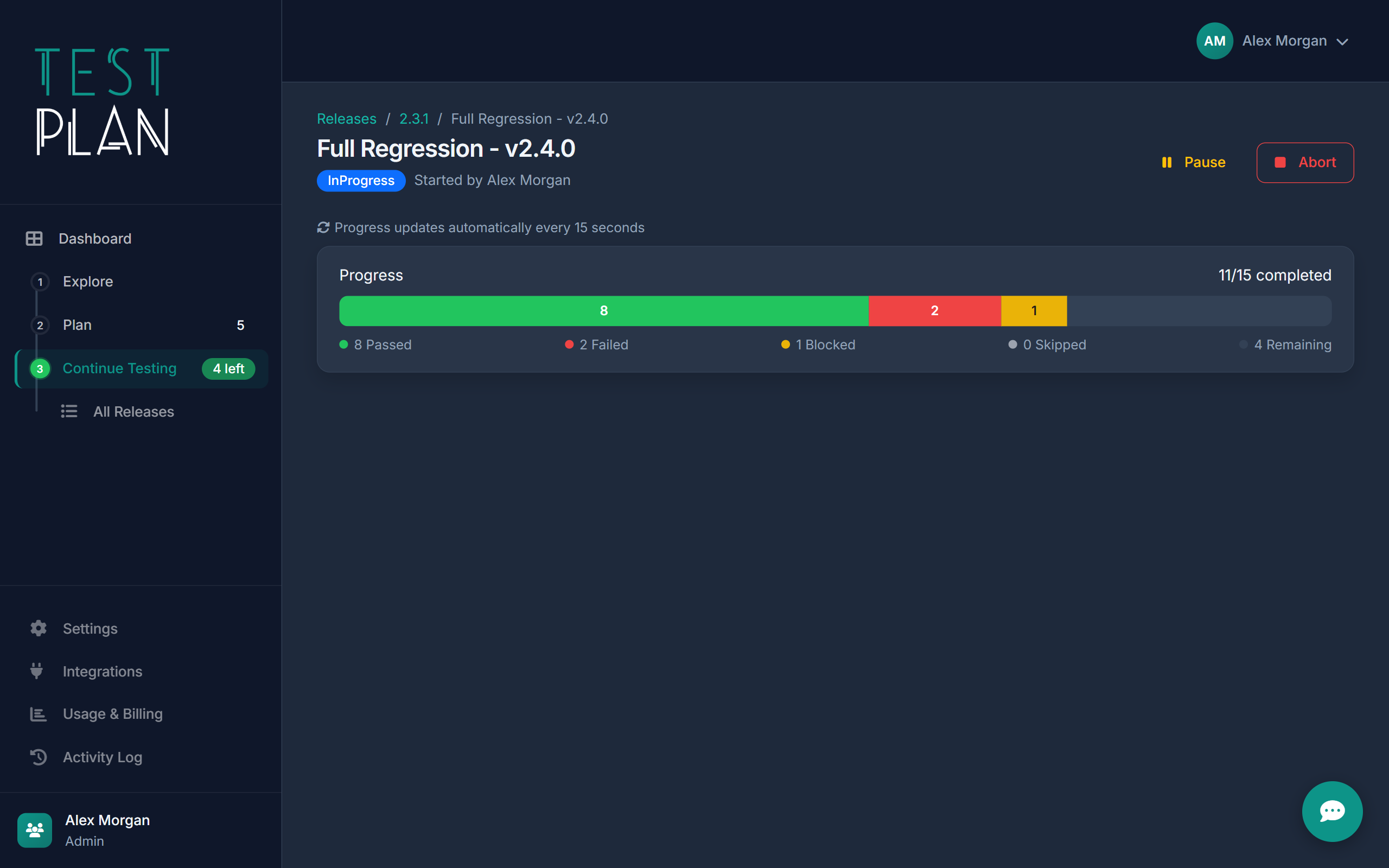
Starting a Test Run
- Go to a release and click Start Test Run
- Select which features to include
- Optionally assign the run to a team member
- Click Create Run
Recording Results
For each test case, select a result:
- Pass - Test completed successfully
- Fail - Something didn't work as expected (add notes explaining what failed)
- Blocked - Can't run due to a blocker (e.g., environment issue)
- Skipped - Intentionally not tested this run
Time Tracking
TestPlan tracks time automatically while you execute tests. You'll see estimated vs actual time in the run summary.
Exploratory Testing
Sometimes you need to explore without a script. Exploratory sessions let you test ad-hoc while capturing findings.
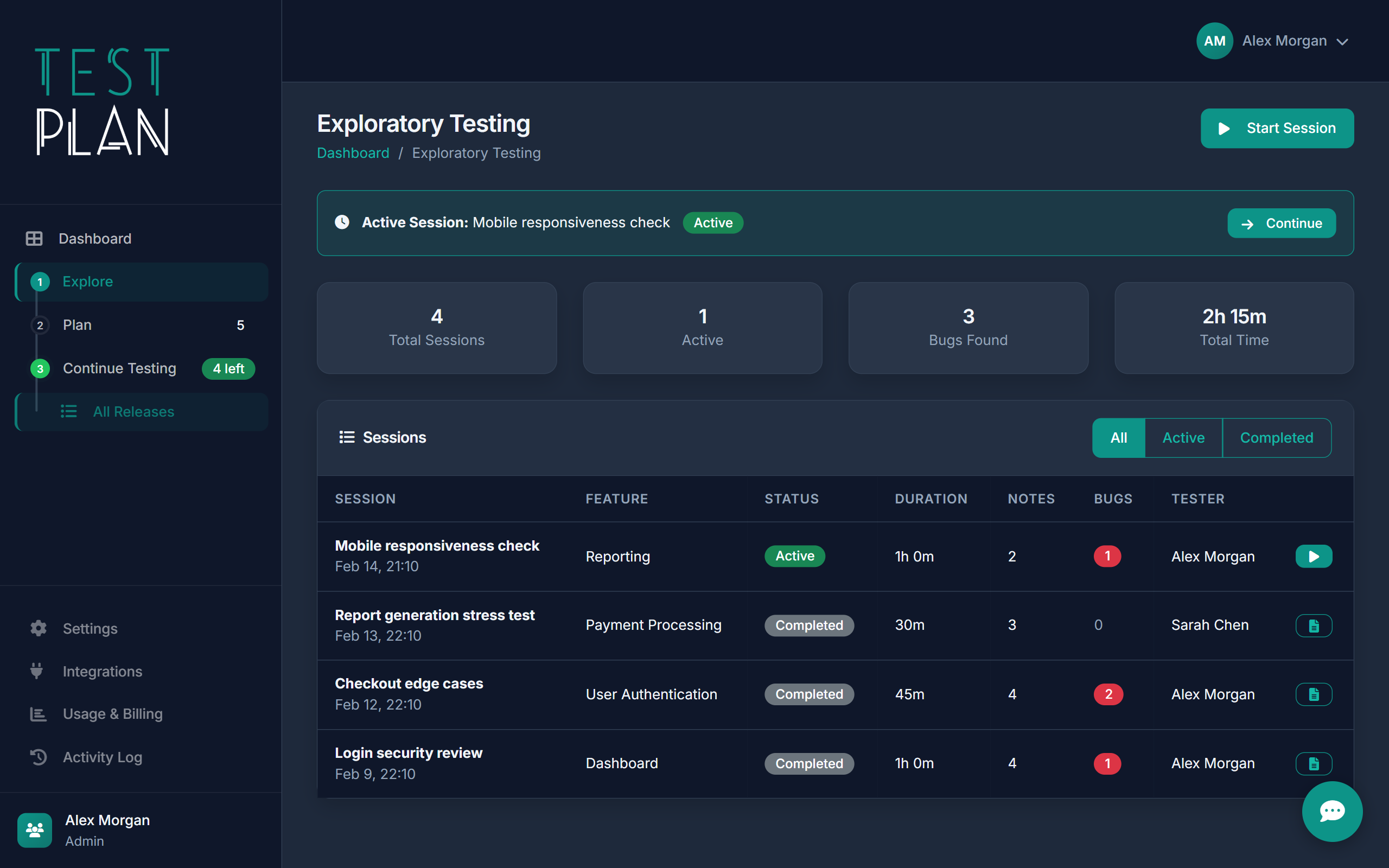
Starting a Session
- Go to Explore in the sidebar
- Click Start Session
- Enter a charter (what you're exploring)
- Optionally link to a feature or release
- Start exploring and add findings as you go
Capturing Findings
During a session, log bugs, observations, and questions. Each finding can be marked as a bug, note, or question. Screenshots can be attached.
Release Management
Releases track your software versions through the testing lifecycle.

Release Workflow
Pre-Release Issues
Track bugs and blockers found during testing. Issues must be resolved before moving to Released status.
Post-Release Issues
If bugs are found in production, log them as post-release issues to track against this version.
Change Inbox
The inbox helps you track changes that need testing. When code ships, flag it here.
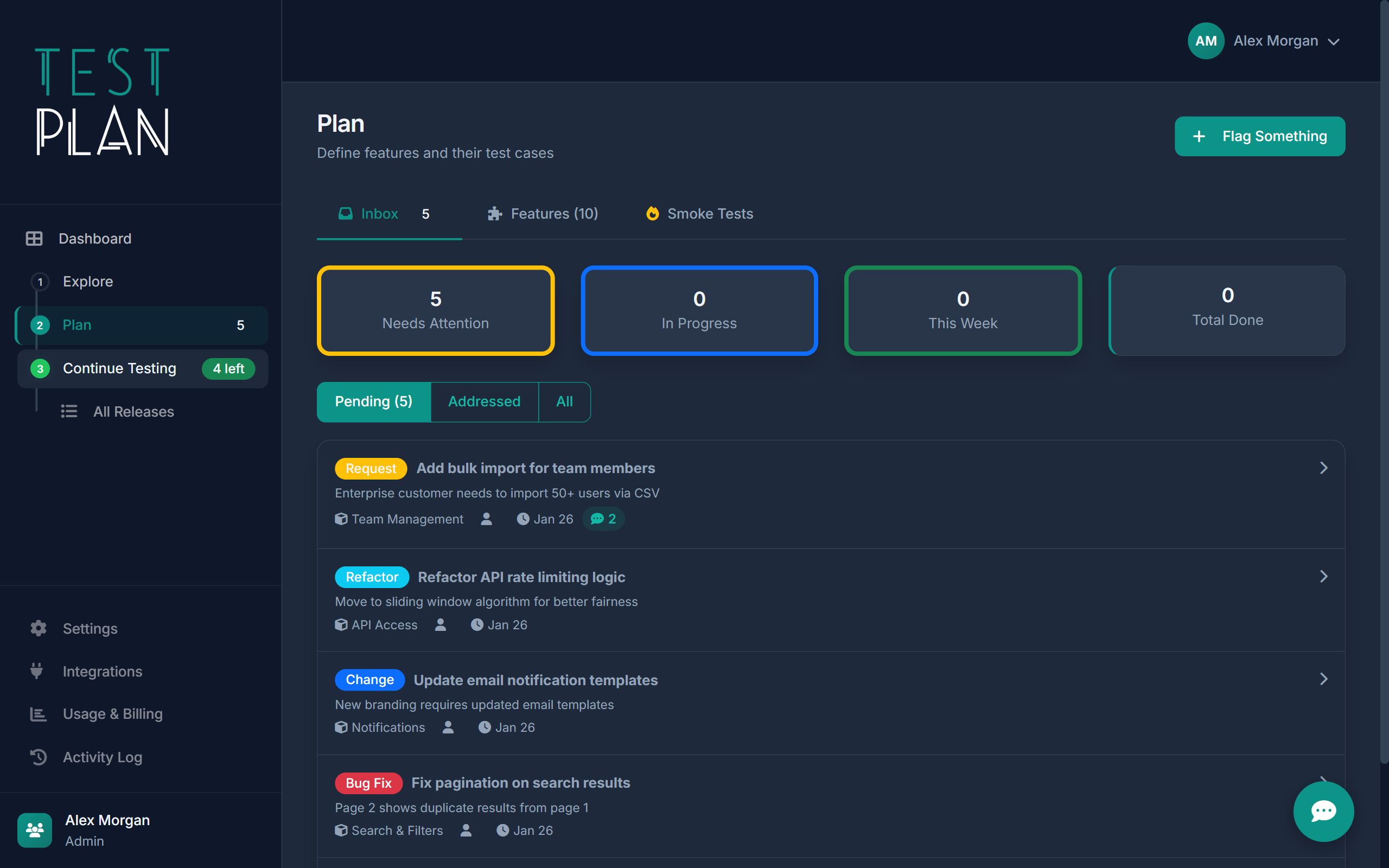
Flagging Changes
Create inbox items for:
- New features that need test cases
- Bug fixes that need verification
- Refactors that might affect behavior
- Dependency updates
Workflow
- Pending - Needs attention
- In Progress - Being worked on
- Addressed - Tests added or verified
MCP Integration
TestPlan exposes a full MCP (Model Context Protocol) server, letting you connect AI tools like Claude Code, Copilot, Cursor, or any MCP-compatible client to manage your test suite.
Setting Up MCP
- Go to Integrations in the sidebar
- Copy your MCP server URL and API key
- Add the TestPlan MCP server to your AI tool's configuration
- Start using AI to manage features, test cases, runs, and releases
What You Can Do with MCP
TestPlan exposes 80+ tools across these categories:
- Features — Create, list, update features and view coverage stats
- Test Cases — Create test cases with steps, priorities, and expected results
- Test Runs — Start runs, record results, get reports
- Releases — Manage release workflow and track issues
- Plan Inbox — Flag changes that need testing
- Documentation — Create and manage help centre content
Example Workflow: Bootstrap from Code
This gets you from zero to a full test suite in minutes. See the How It Works page for the full recommended workflow.
API Access
Team and Enterprise plans include REST API access for custom integrations. Generate an API key from Integrations settings.
Team Management
Inviting Members
Go to Team to invite new members by email. They'll receive an invitation to join your workspace.
Roles
- Admin - Full access including billing and team settings
- Member - Can create and run tests, but no admin access